


In this article we’ll show you, how to Create Discount Code in Your Shopify Store. Follow this simple steps…
Step 1: Get Started
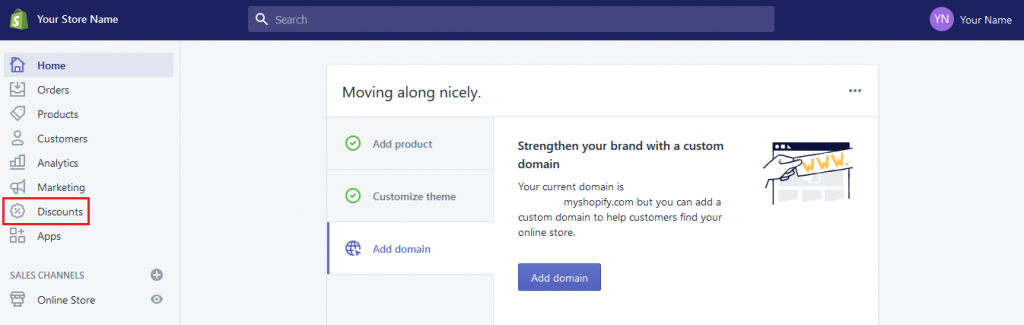
Login into Shopify Admin Panel and from sidebar, click on Discounts.
Step 2: Create Discount Code
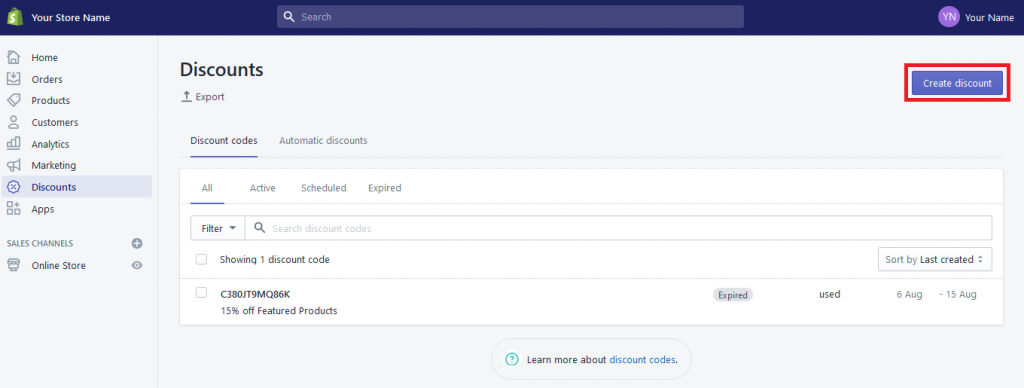
Now here click on Create Discount button at the top right corner.
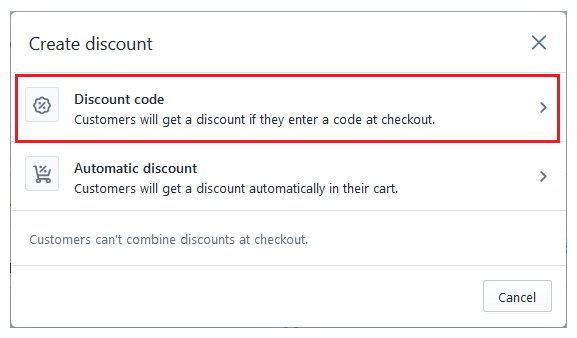
Now one pop-up is open, and here click on Discount Code.
Now fill the below details.
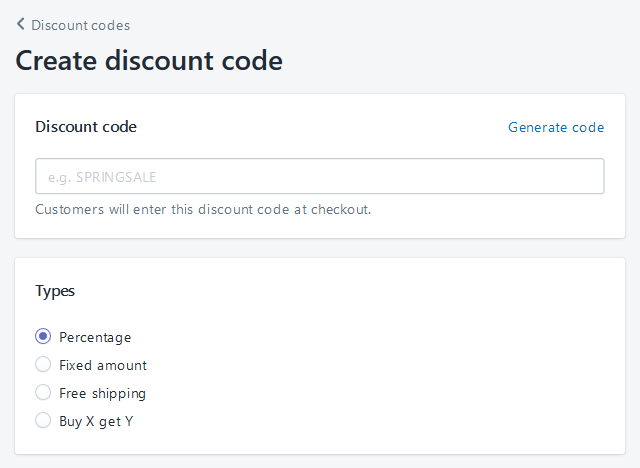
Discount Code: Enter the discount code that you want.
Type: 4 type of Discount Code Available here.
Percentage: You can give discount in percentage of total order. Ex. 10%
Fixed Amount: You can give discount as a fixed amount of total order. Ex. 5$
Free Shipping: You can give free Shipping on orders.
Buy X Get Y: You can give discount like Buy X products and get Y products free.
Here we are going with percentage type of discount.
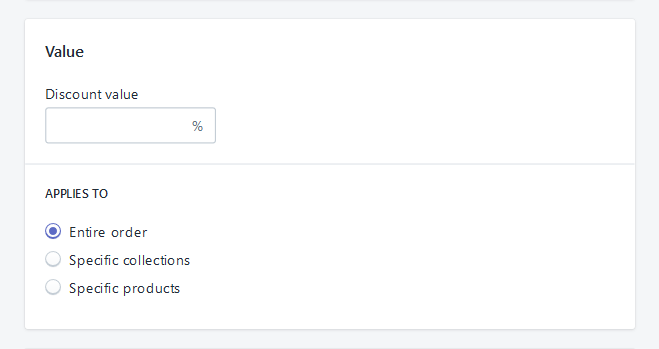
Value: Enter the percentage of discount you want to give.
Applies to: Select where you want to apply these discount and also select the minimum requirements of the order.
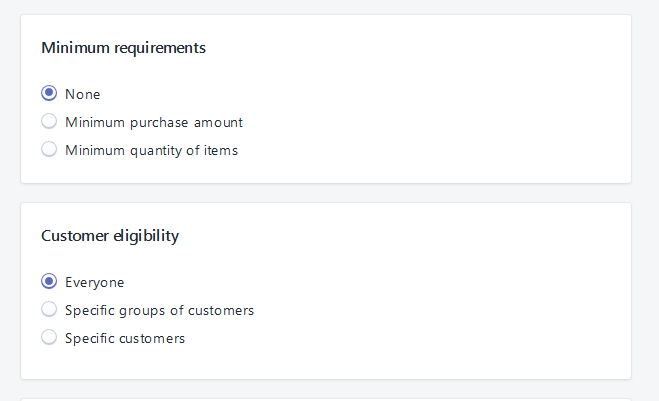
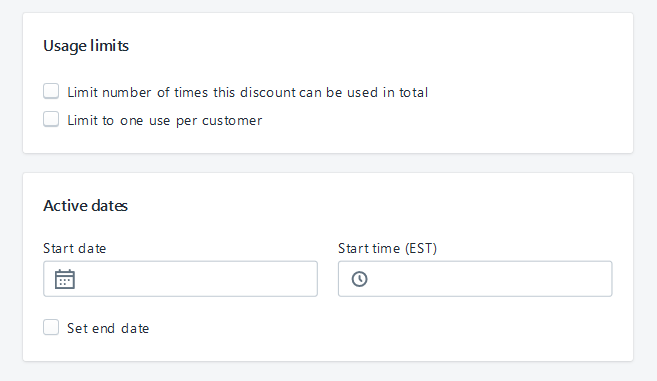
Usage Limit: Here you can set usage limit of discount code.
Active Dates: Here you can set start date and end date for this Discount Code.+
Now at the bottom click on Save discount code button.

Yeah Done! In the same you can create more Discount code as you want!
Let us know in the comment section, if you have any question.

Ecommerce Root is one of the leading ecommerce guide which provides total solutions for ecommerce.


January 28, 2020 at 7:02 pm
Awesome post! Keep up the great work! 🙂