


In this article we’ll show you, how to Setup Free Shipping on Shopify. Follow this simple steps…
Step 1: Get Started
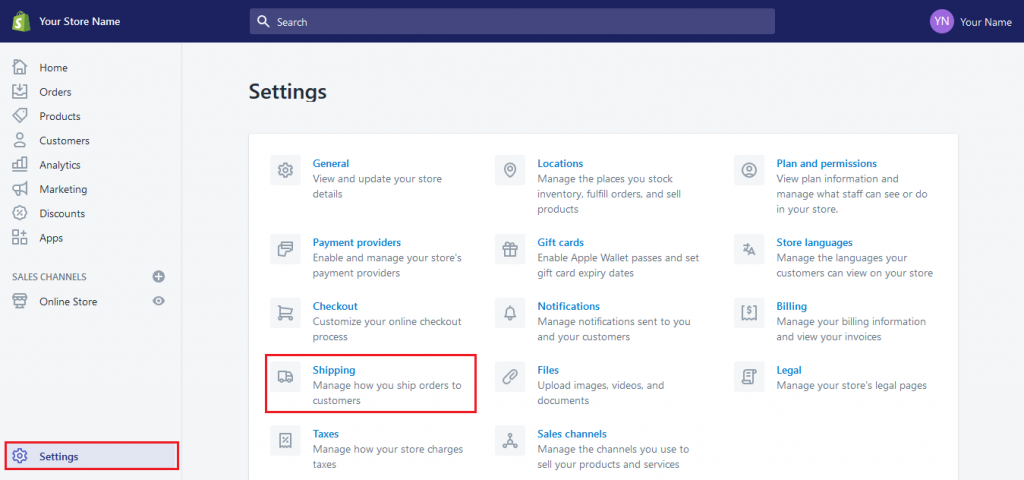
Login into Shopify Admin Panel and from sidebar, click on Settings and then click on Shipping.
Step 2: Setup Free Shipping
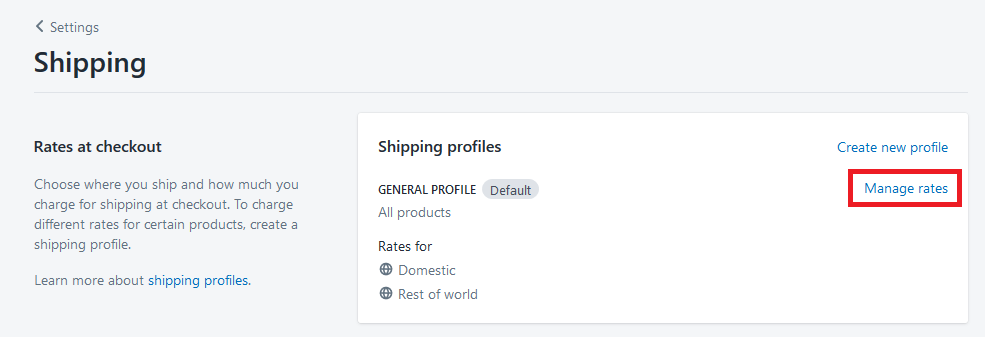
Now under the shipping profiles click on Mange Rates.
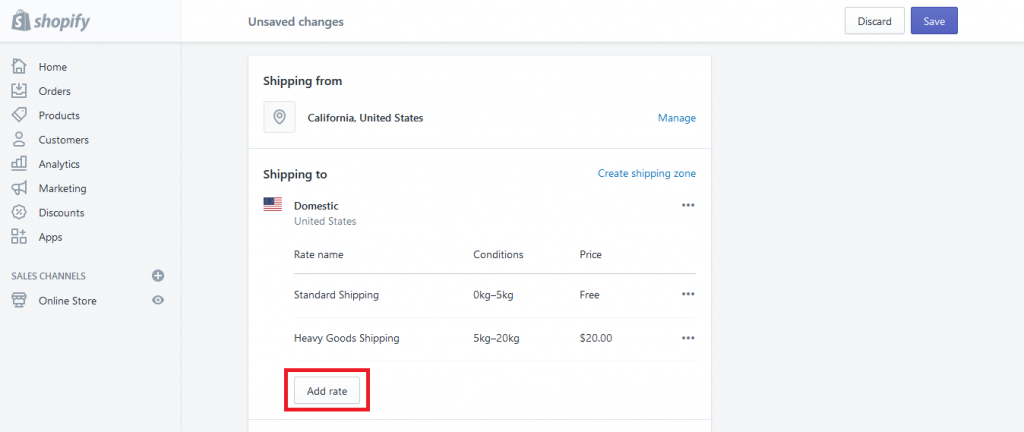
Now just scroll down and under Shipping to, click on Add Rate button.
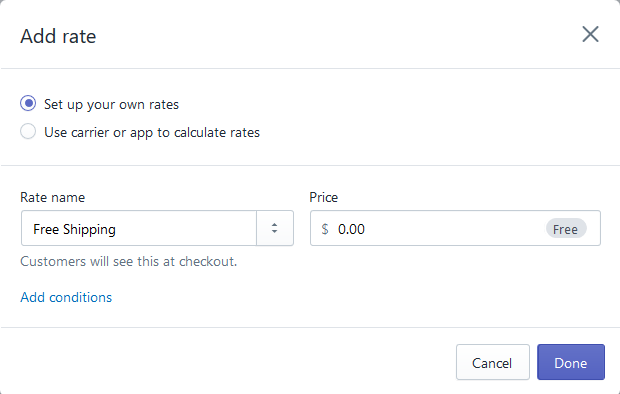
One pop-up is open. Here you can add Free Shipping details.
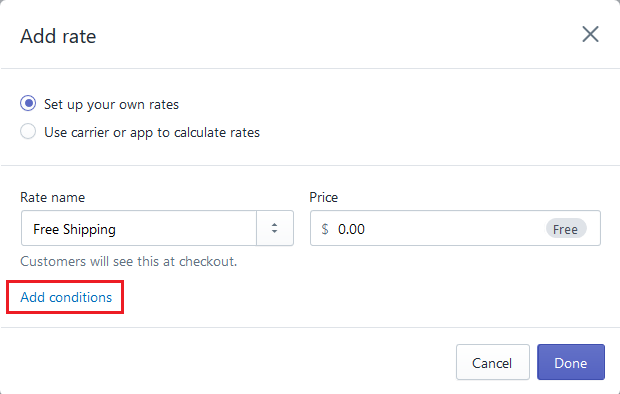
Select Set up your own rates and Enter the rate name you want to keep. Here I give rate name as a Free Shipping. Now Set Price is equal to 0.00
Now click on Add Condition link. Here you can give free shipping on two condition.
1. Based on Item Weight
Here you can add Minimum Weight to allow free shipping or also set Maximum Weight.
Example: In Minimum Weight I will enter 5Kg and Maximum Weight set to No Limit.
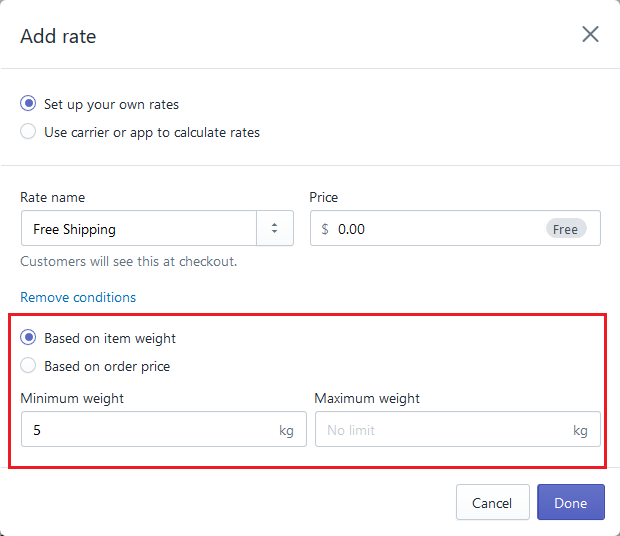
So Now Customer who have order Weight 5Kg or more than that, They all are eligible for Free Shipping.
2. Based on Order Price
Here you can add Minimum Price to allow free shipping or also set Maximum Price.
Example: In Minimum Price I will enter $100 USD and Maximum Price set to No Limit.
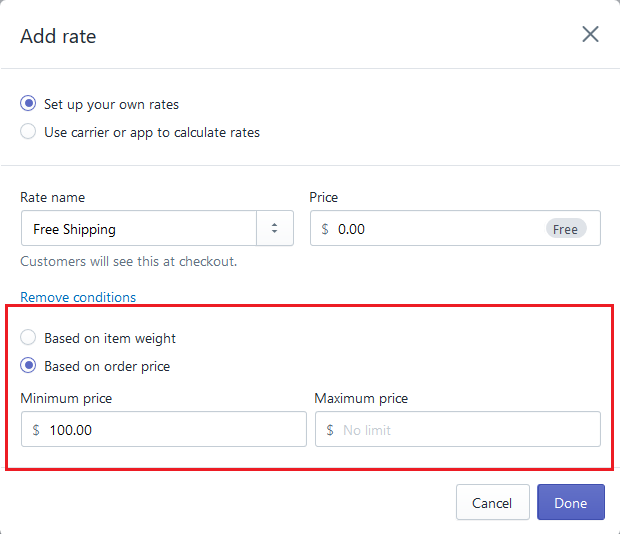
So Now Customer who have order price $100 or more than that, They all are eligible for Free Shipping.
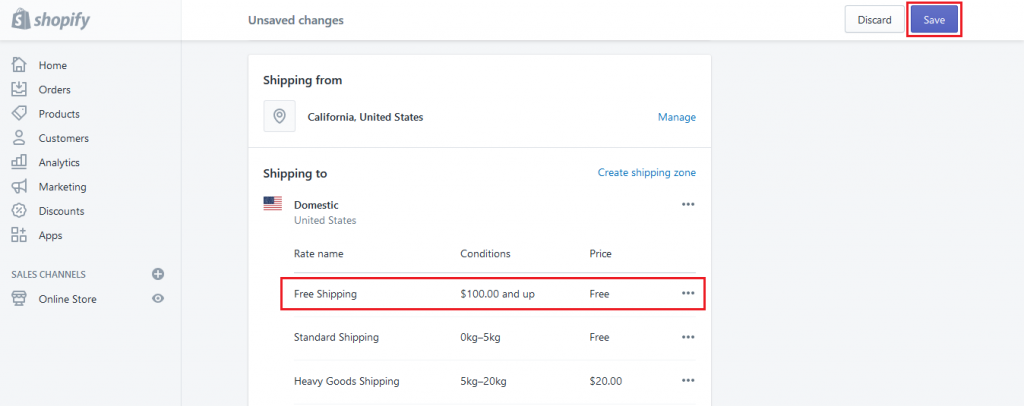
Set the condition that you have more preference. Now click on Done button. Here you can see the free shipping info. Now click on Save button at top-right corner to save the changes.
Yeah Done! Let us know in the comment section, if you have any question.

Ecommerce Root is one of the leading ecommerce guide which provides total solutions for ecommerce.


Leave a Reply